Setting Up Apple Pay or Google Wallet with a Bancontact Card
You are standing at the Delhaize checkout with a line of impatient locals behind you, and your phone won't tap because it doesn't recognize your Belgian card. I spent my first three weeks in Brussels fumbling with physical plastic before I realized that Bancontact requires a specific dance to play nice with digital wallets. This guide solves the technical and administrative headaches of linking your local Belgian card to your smartphone for seamless payments.
Understanding the Bancontact Ecosystem in Belgium
Before you dive into the settings of your phone, you have to understand that Bancontact is not a credit card. It is a domestic debit system that serves as the lifeblood of the Belgian economy. If you have ever wondered What is a Maestro Card and Why is Mastercard/Visa Sometimes Rejected?, it usually comes down to the merchant's desire to avoid high transaction fees. Bancontact is cheaper for the local bakery or the pharmacy, which is why they insist on it.
The most important thing to realize is that modern Belgian bank cards are almost always "co-branded." This means they have the Bancontact logo for local use and either a Maestro, Mastercard Debit, or Visa Debit logo for international use. When you add your card to a digital wallet, you are often choosing which "scheme" the phone should use. In the past, Apple Pay and Google Wallet struggled with the Bancontact-only portion of the chip, but recent updates between the banks and the tech giants have smoothed this out.
Belgium is also unique because of the Payconiq system. While Apple and Google rely on NFC (Near Field Communication) for tapping, many smaller merchants only display a QR code. This is why most expats find that while they want Apple Pay for the supermarket, they still need the local apps for the weekend markets. Understanding Bancontact and Payconiq: The Backbone of Belgian Payments is essential for anyone living here long-term, as it ensures you are never stuck without a way to pay.
How to Set Up Apple Pay with a Bancontact Card
If you are an iPhone user, Apple Pay is remarkably well-integrated in Belgium, provided your bank supports it. Most major institutions like BNP Paribas Fortis, KBC, and Belfius have had this functionality for years. However, the setup process can vary slightly depending on whether your card is a legacy Maestro-Bancontact card or a newer Mastercard-Bancontact debit card.
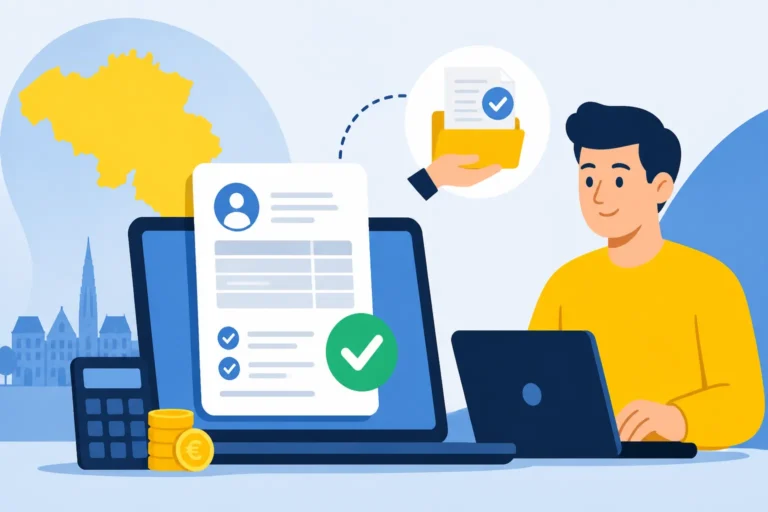
To begin, you should open the Wallet app on your iPhone and tap the plus sign. You can scan your card, but I highly recommend going through your bank’s official app first. For instance, Setting Up Apple Pay with BNP Paribas Fortis is much easier if you initiate it from the "Easy Banking" app. This "in-app provisioning" method bypasses a lot of the manual verification steps and ensures that the Bancontact functionality is correctly prioritized by the Apple Wallet.
If you are using KBC, you will find that the KBC Mobile App: Using English Settings for Easier Banking makes the Apple Pay toggle very easy to find under the "Payment" tab. Once you toggle it on, the app communicates with Apple's servers to secure a virtual token for your card. You might receive a text message with a verification code. Do not ignore this; Belgian banks are notoriously strict with security, and if the code expires, you might have to call a customer service line that may or may not have an English speaker available immediately.
One frustration many expats face is a "Card Not Supported" error. This often happens if your residency status at the bank isn't fully updated or if you haven't received your eID card yet. If you are still waiting for your physical ID, you might find it helpful to know What to Do If You Lose Your Belgian eID Before a Doctor Visit, as the same identification principles apply to your banking security. If the error persists, ensure you have the latest version of your bank’s app and that your phone's region is set to Belgium in the iOS settings.
How to Set Up Google Wallet on Android
Android users in Belgium had to wait a bit longer for universal Google Wallet support, but the system is now very robust. The process is similar to Apple Pay but offers a bit more flexibility in how you manage your cards. If you are using one of the Online and Neobanks in Belgium: Keytrade, Argenta, and Revolut, you will find that Google Wallet is often the default payment method.
To set it up, open the Google Wallet app and select "Add to Wallet." When you enter your Belgian card details, the system will attempt to verify the card with your bank. This is where many expats get stuck. Some Belgian banks, particularly the more traditional ones, require you to have Itsme Authentication: How to Set Up Belgium's Vital Digital ID fully functional to approve the link between Google and your bank account. Itsme acts as a digital signature, and without it, the bank might block the "tokenization" of your card for security reasons.
Once the card is added, make sure to set it as your "Default for Tap to Pay." In Belgium, you might find that while your local card works perfectly, your international investment accounts or crypto cards like those from Binance need to be kept as secondary options. While you can use Binance for certain online purchases or specific merchants that accept major credit schemes, the local Bancontact card in your Google Wallet is what you will use 90% of the time at the grocery store or the train station.
Another pro-tip for Android users: ensure your NFC is turned on in the quick settings menu. I once spent ten minutes at a Colruyt checkout trying to figure out why my phone wouldn't trigger the payment terminal, only to realize I had accidentally toggled NFC off while trying to save battery life. Unlike Apple Pay, which triggers automatically, Google Wallet occasionally needs that extra check to ensure the hardware is ready to communicate with the Belgian payment terminal.
Comparative Overview of Mobile Payment Options
Navigating the different apps can be confusing. The table below compares the three main ways you will likely pay with your phone in Belgium.
| Feature | Apple Pay | Google Wallet | Payconiq |
|---|---|---|---|
| Technology | NFC (Tap) | NFC (Tap) | QR Code (Scan) |
| Acceptance | High (Supermarkets) | High (Supermarkets) | Very High (Small shops) |
| Setup Ease | High (via Bank App) | Medium (Needs Itsme) | Medium (Identity check) |
| Works Offline | Yes | Yes | No (Needs Data) |
| Limits | Same as Physical Card | Same as Physical Card | Often Lower Daily Limit |
| Watch Support | Apple Watch | Wear OS | Not available |
Practical Expat Tips for Daily Mobile Payments
Living in Belgium means embracing a mix of high-tech solutions and old-school rules. For example, even if you have Apple Pay set up perfectly, you will still encounter the occasional "Bancontact Only" shop that hasn't updated its terminal in a decade. In these cases, a digital version of a Visa or Mastercard won't work, even if it's on your phone. You must ensure that the card you've added to your wallet is specifically the Bancontact debit card provided by your Belgian bank.
Security is another major factor. The Belgian banking system is very protective. If you make several large purchases in a row using Google Wallet, your bank might temporarily freeze the digital token. It is always wise to keep your physical card in your wallet as a backup. While I love the convenience of my phone, there have been times when the terminal at a train station simply refused to communicate with my watch, and having the plastic card saved me from a fine.
If you are moving money around to cover your Belgian expenses, you might use a service like Wise to transfer funds from your home country into your Belgian account. Once the money hits your Belfius or KBC account, it is immediately available for use via Apple Pay. Similarly, if you are using Trade Republic for your savings, you will realize that while it’s great for interest, it doesn't offer a Bancontact-branded card, which brings us back to why setting up your local card in your digital wallet is so critical for daily survival.
Finally, remember the importance of splitting costs. In a country where dining out is a social ritual, knowing How to Split a Bill in Belgium Using Payconiq by Bancontact is a social lifesaver. While Apple Pay is great for paying the initial bill, the local Payconiq app is what everyone uses to send those 15-euro reimbursements for the "plat du jour." Most Belgian bank apps now have Payconiq integrated directly, so you don't always need a separate app, but you do need to activate it within your bank's mobile settings.
Troubleshooting Common Issues
If your phone refuses to add the card, check your "Daily Limits" in your banking app. Sometimes, the default limit for mobile payments is set to zero for new accounts as a fraud prevention measure. You can usually slide this up to 500 or 1,000 euros instantly. If you are a student or on a specific visa, your bank might have placed lower default limits on your account that require a quick visit to the branch to lift.
Another common issue is the "Expired Card" notification. When your physical Belgian card expires, the digital version usually stops working simultaneously. Unlike some US or UK banks that automatically update the digital token, Belgian banks often require you to delete the old card from Apple or Google Wallet and manually add the new one once it arrives in the mail.
If you find yourself frequently using international services like Wise or Trade Republic, remember that those cards in your wallet will work at large retailers like Zara or H&M, but they might fail at the local "Frituur." Always prioritize your Bancontact card as the "Main Card" in your settings to avoid the awkwardness of a declined transaction while your fries are getting cold.
Final Disclaimer
The information provided in this guide is for informational purposes only and does not constitute financial, legal, or professional advice. Banking regulations and digital wallet compatibility in Belgium are subject to change by individual financial institutions and technology providers. While we strive to keep this information accurate as of 2026, you should always consult your bank's official documentation or customer support for the most current procedures and security protocols regarding your specific accounts. Use digital payment methods at your own risk and ensure your device security settings are up to date.